
Access to a stage by code is a way to restrict access and limit the capacity of the stage. To be able to do this, it is necessary that the user has the administrator role within the 3D world and has the "Generate access codes" permission activated, if you do not have this role activated you cannot generate invitation codes. It is also necessary to access the scenario in question and select the option that appears at the top left of the menu, known as "CODE".

Then, a menu appears that allows you to generate an access code for that scenario, or you can also enter a code that another user has shared in order to access another scenario:
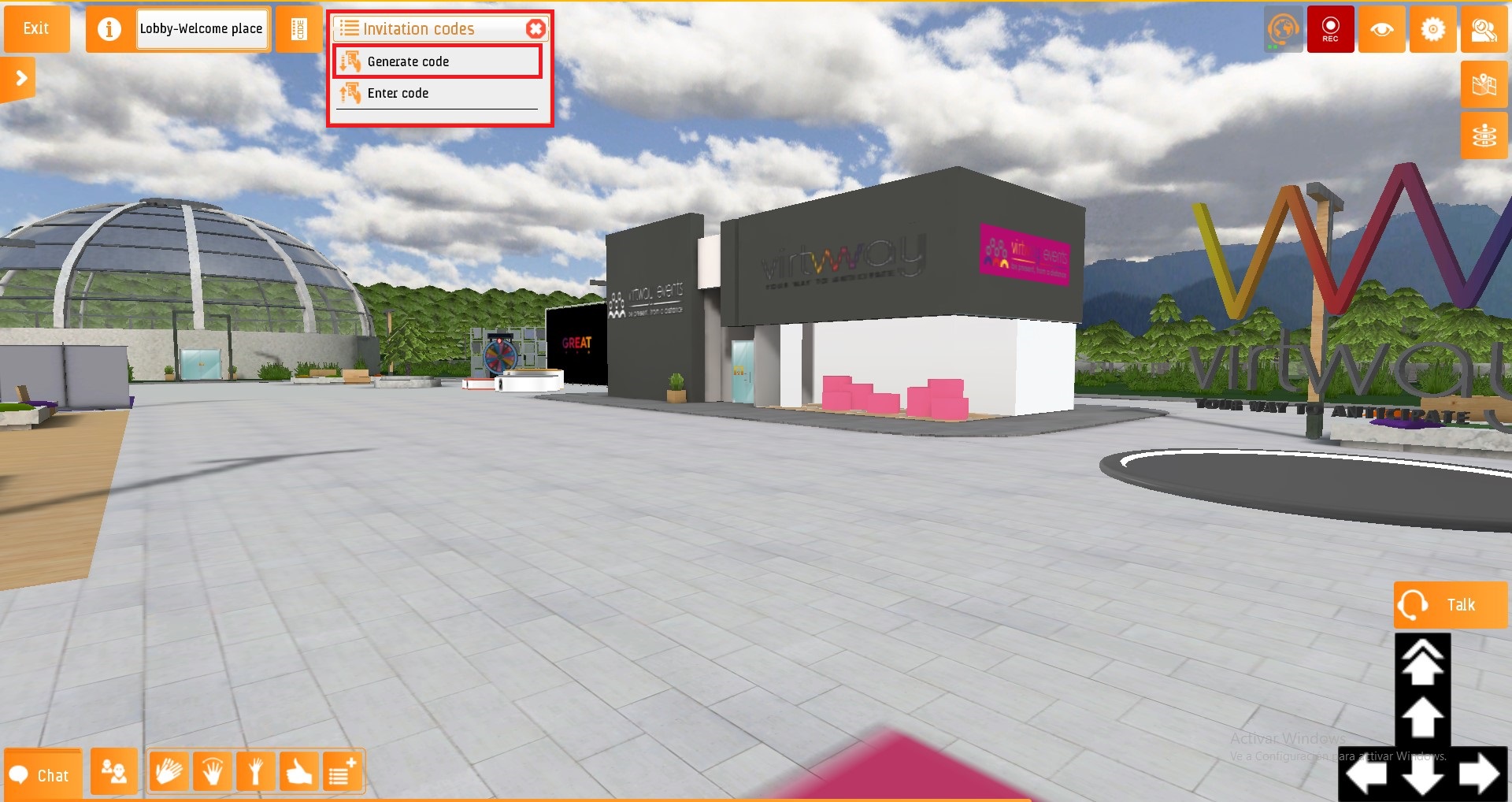
- If you select the "Generate code" option, another window will open and there you can configure the code.
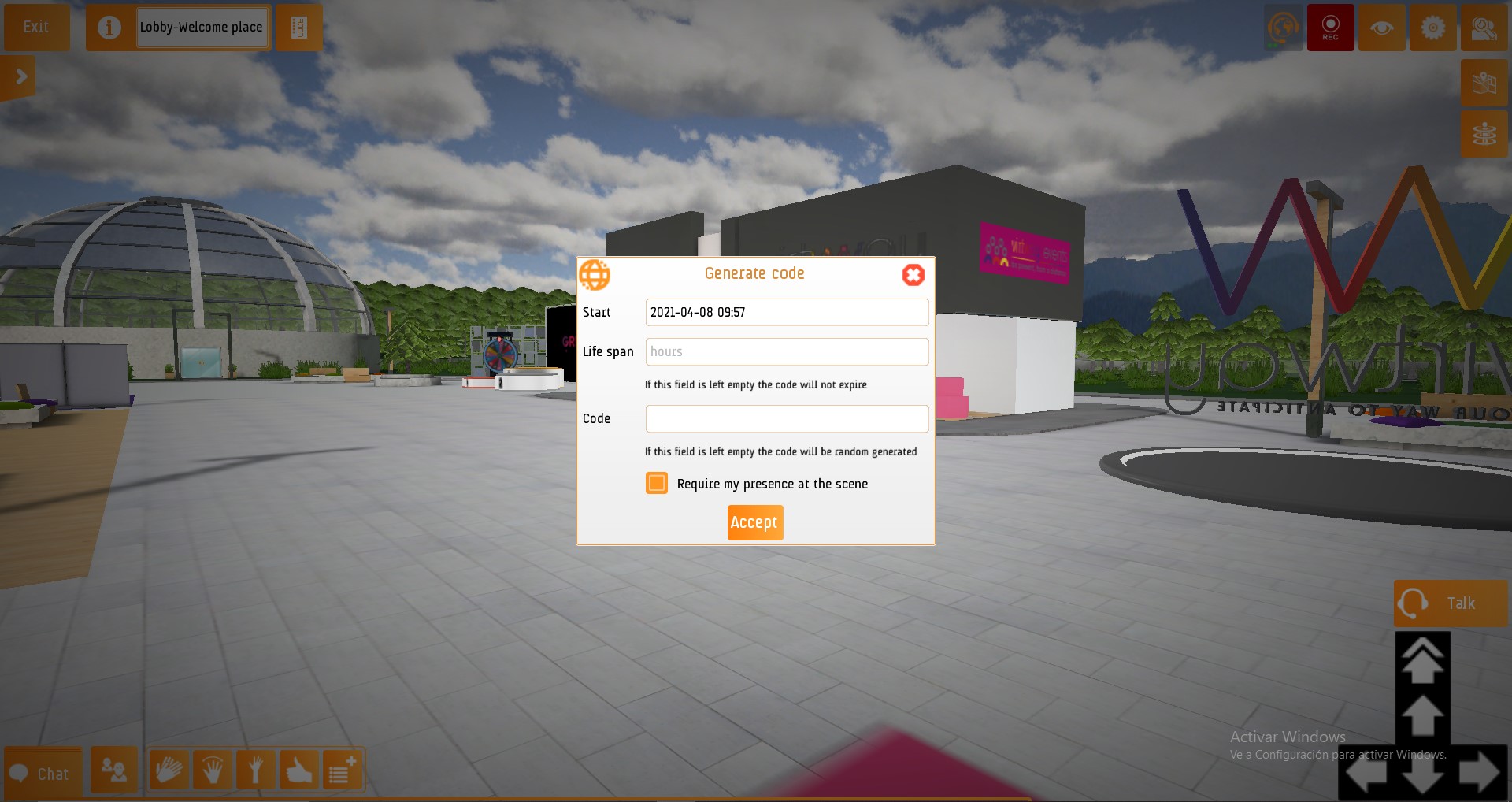
- Start: Select the date and time you want to generate the code.
- Duration: Select how long you want the code to be active. If not filled in, the code will not expire.
- Code: You can write the code you want and if this section is left blank, a code with a random name will be generated.
- Require my presence on stage: If the box is checked you must be on stage in order for the user you have sent the code to be able to enter the stage. If left unchecked, the user can enter without you being on stage.
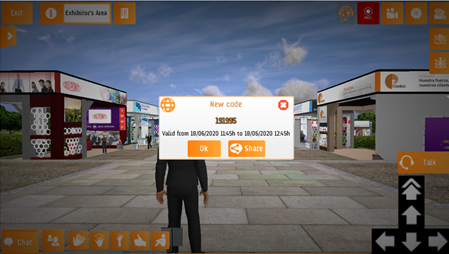
Once the access code you want to send is personalized, the virtual platform allows you the option to share it with the end-user through the "share" option:
- On the other hand, by selecting the option "enter code" you can enter an access code to another scenario that you have been received from another user:
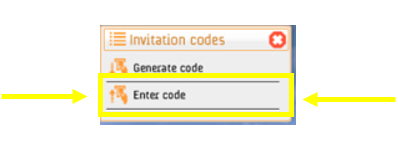
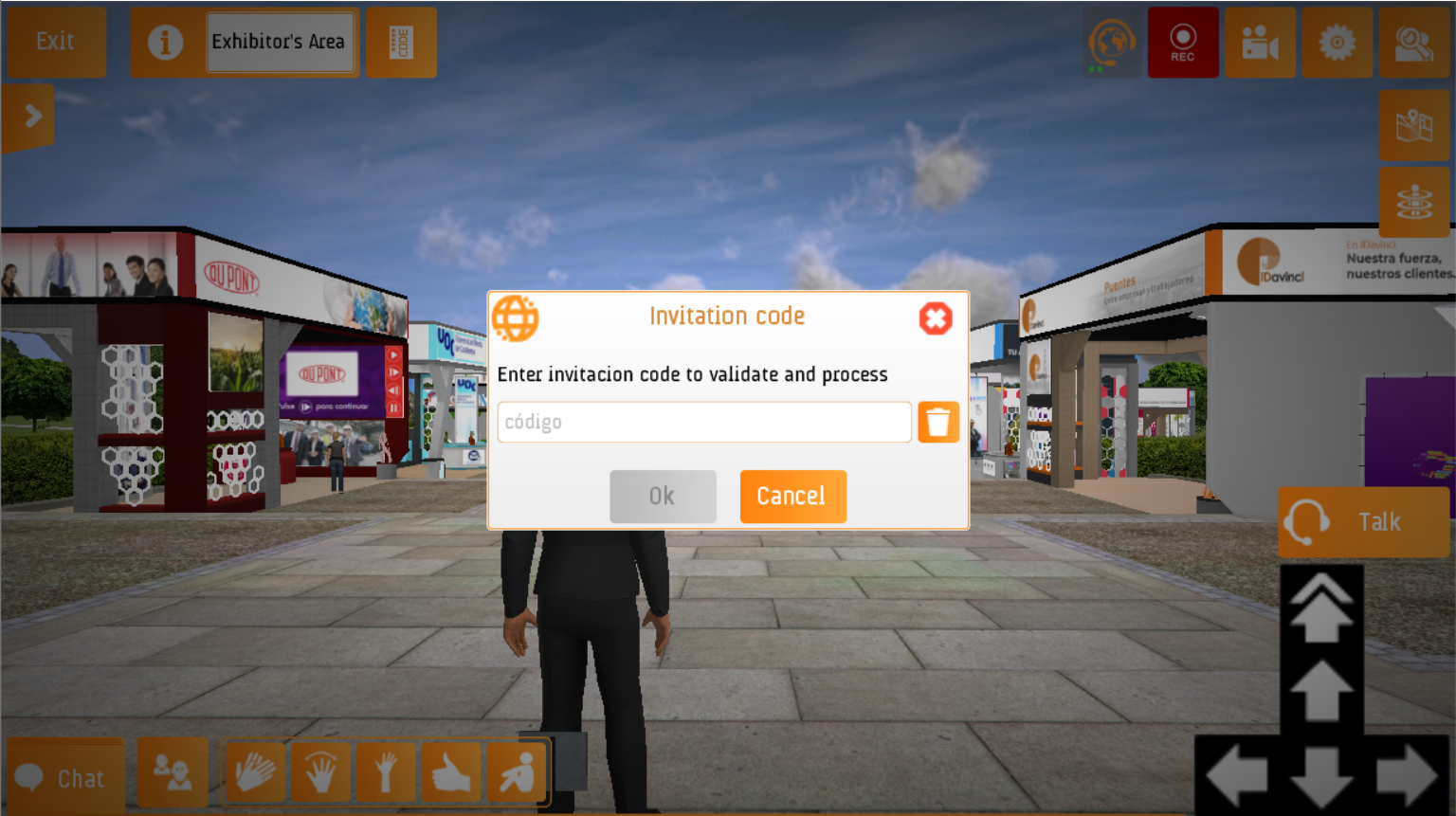
Access a scenario by invitation code.
- You can also use the invitation code from the initial Environment Selection menu. It must be entered in the "virtual environment/ invitation code" section. This accesses the scenario by using the access code that has previously been created.
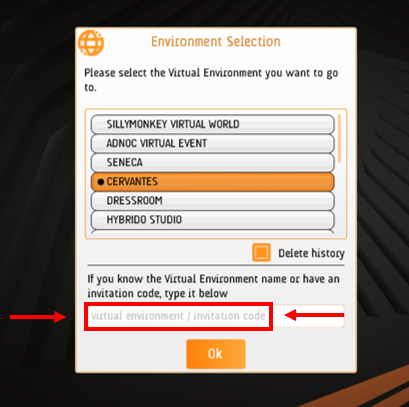
Going to the scenario using the invitation code from the virtual world.