
Virtway Events' professional profile has the function of a virtual business card within the application. It provides information about a user's career or interests. It can be very useful depending on the type of event, but it's not necessary to include it in your virtual world. That is, if you would like for this option to be disabled, it's just need to contact Virtway Events so that it doesn't appear in the general profile of the users. Additionally, it is an optional field so the user is not obliged to give this information if they don't consider it appropriate.
The profile provides information about the following fields:
- Job position
- Interests
- Objectives
- University / Company
- Contact information
- Website / Facebook / Twitter
How to modify your avatar's professional profile from Virtway Events app:
- From the main start/menu page in the Virtway Events 3D platform, click on your avatar's profile, as indicated in the image below:
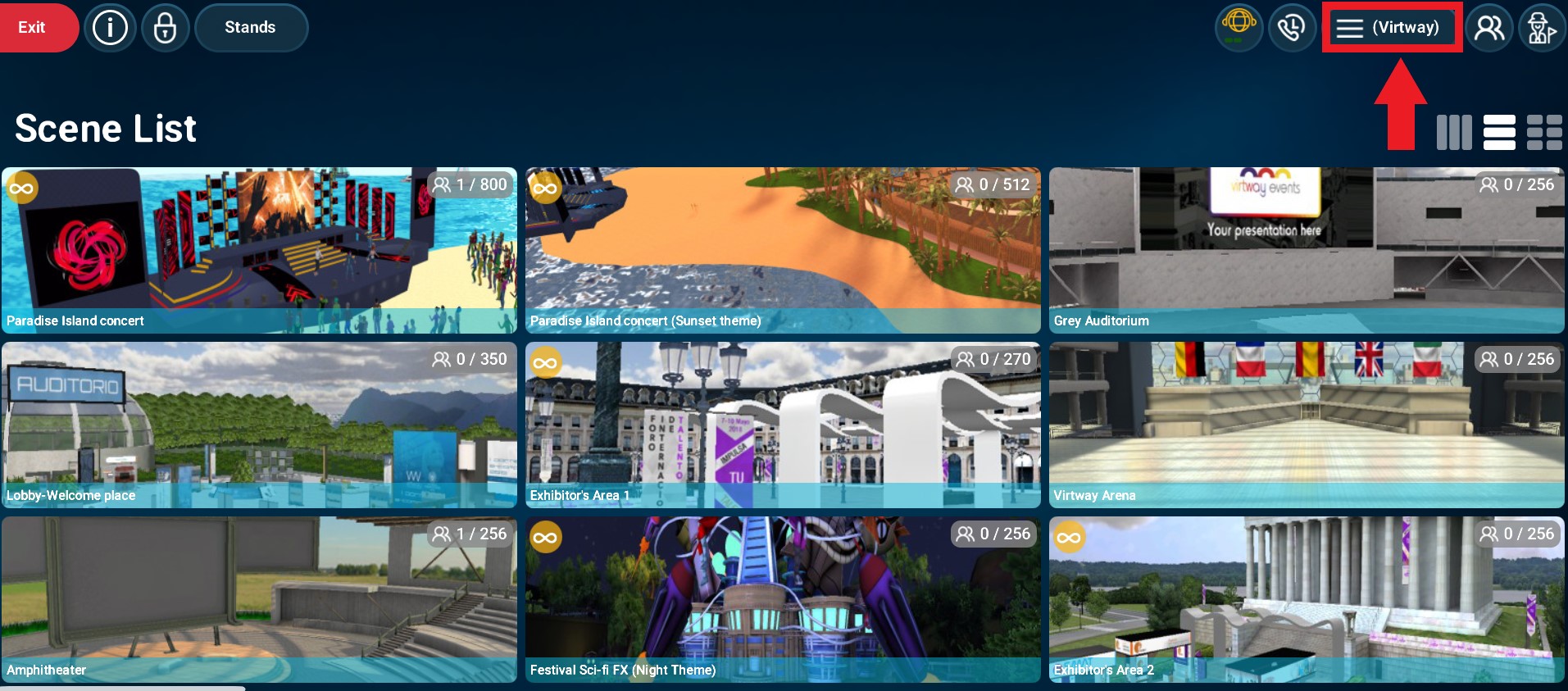

2. Select the option "My Profile":

3. A menu will be displayed that contains an option where the avatar's professional profile can be found:

4. Select "Professional Profile". This profile must be completed and saved before accessing the 3D world. It will be the professional profile that your avatar will use within the virtual world.
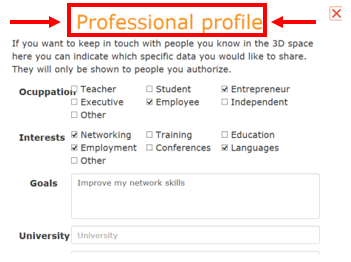
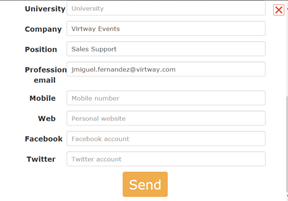
5. In order to request the user's professional profile within Virtway's virtual world, click on the avatar of the corresponding 3D user and select "request contact information".

Professional user´s profile using the 3D world of Virtway Events.
6. In addition, it should be noted that an email containing a copy of this information is sent to the email address of the user who has requested to see this business card.
How to modify an avatar's professional profile from the Virtway Events CMS:
- Enter the 3D World User Management section.
- Select the user you wish to change (IMPORTANT: Guest users will not have access to a professional profile).
- Within your CMS profile, your professional profile information appears and can be modified.
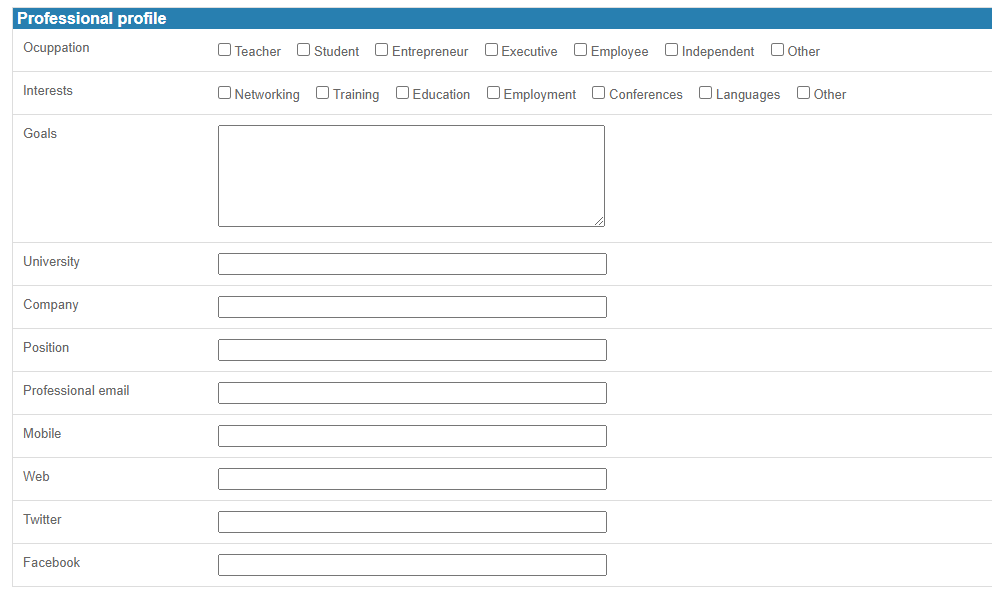
4. Be sure to save the new information.