
The Sound Wizard is an application feature that allows us to set the optimal sound detection values for both input and output to establish the most satisfying experience possible.
To activate te sound wizard you must:
1. You have to go to settings menu:
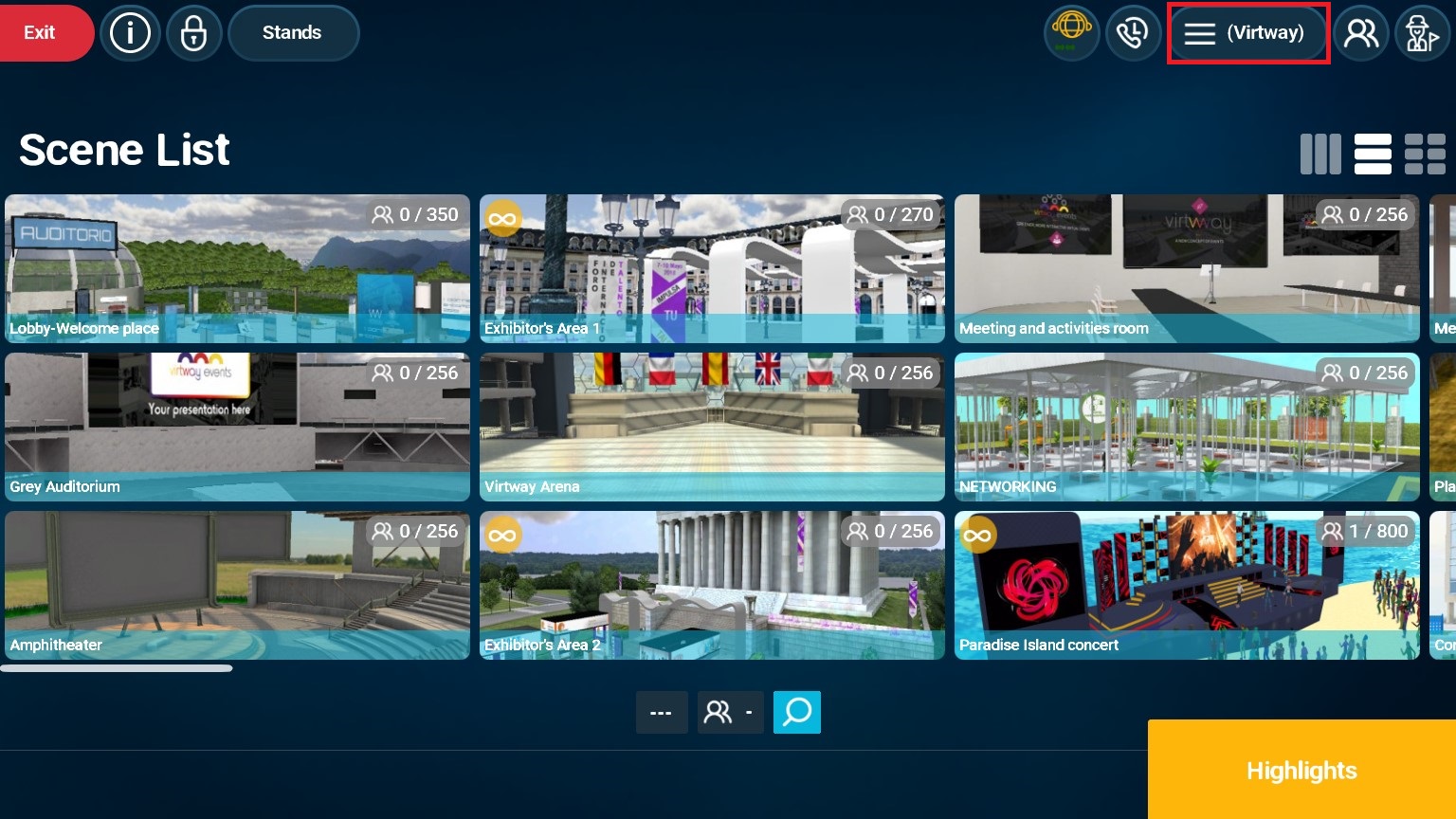
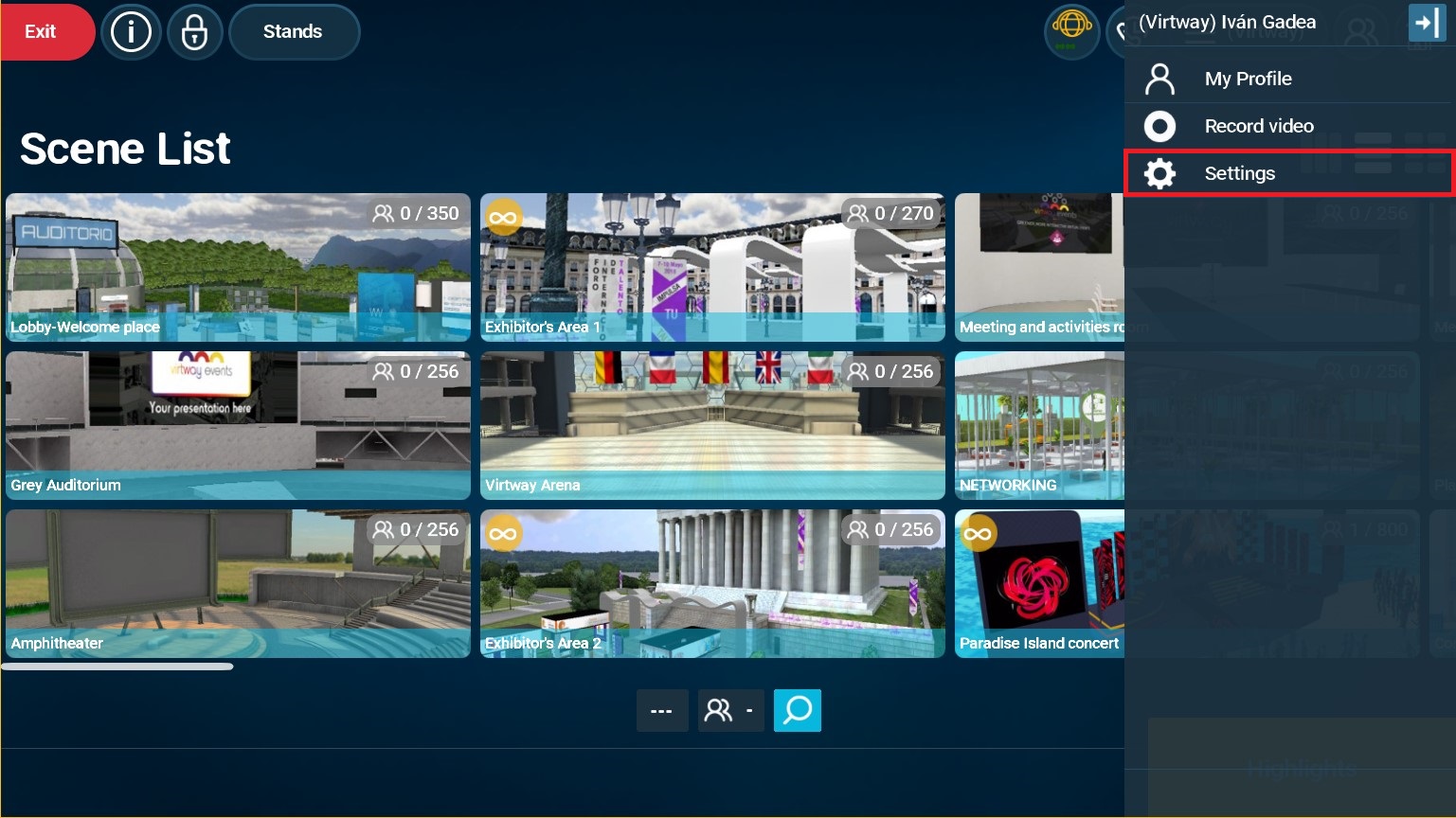
Position of the settings button in the main scene list screen.
2. Activate the Sound Wizard:

Settings menu.
To run the wizard effectively you need to: connect the headphones you are going to use to the computer, and be in a low noise environment so that the wizard can set the actual noise level.
When running this wizard, you may encounter some problems, which are explained below:
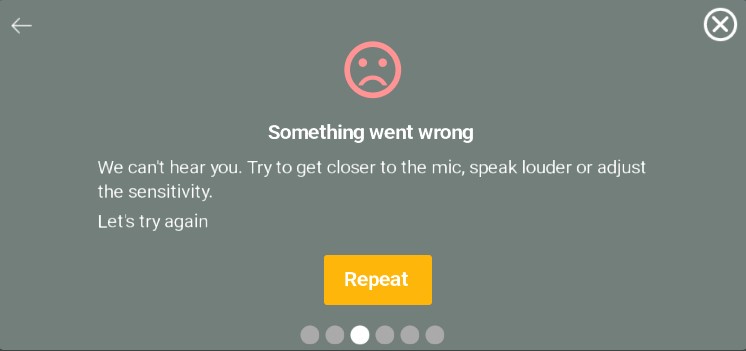
- The sound assistant can't hear you well, it doesn't pick up your voice:
This may be due to a number of reasons:
- Not having the right device connected.
- That the time to perform the reading test is over.
- There is background noise.
- You are away from the microphone.
SOLUTION: Repeat the test again while checking the correct operation of the aforementioned aspects.
- The voice activity detection level bar does not move when I speak:
Most probably you have not connected the input/microphone device properly or you have several connected and you are picking up the sound from another one.
POSSIBLE SOLUTION: Reconnect the device, or if you have several, select the correct one in the "Voice over IP" section and run the Sound Wizard again.
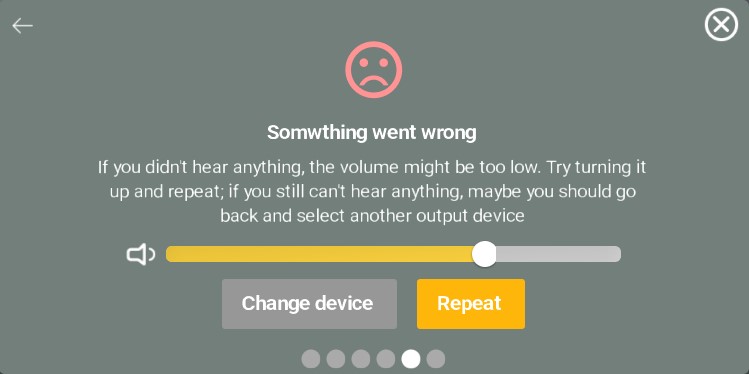
- I do not hear anything when the wizard asks me if I have heard a sound:
Probably the playback device is misconfigured or you have not selected the device you would like to be using. The wizard gives you the option to say "I didn't hear it right" and, in that case, it will give you the opcion of choosing another device (if you have several).
Another posibility is that your computer's volume is too low, so you can't hear it.
- It says to check your settings in the last step:
Lastly, the wizard will play a sound to check the sound transmitted by your headset is not picked up by your microphone.
If you are using a headset and the sound is being played by another device, when pressing 'repeat', it will allow you to change the device and then, repeat this step.
In order to have a correct operation of the audio system, make sure the sound is playing through the headset, it is a quiet environment and not noisy.
- I think I have everything set up correctly but I am not able to complete the wizard:
It is highly recommended to set the sound configuration of the application through the Sound Wizard, however, it's not compulsory. It can also be configured from the settings as shown in the following image:
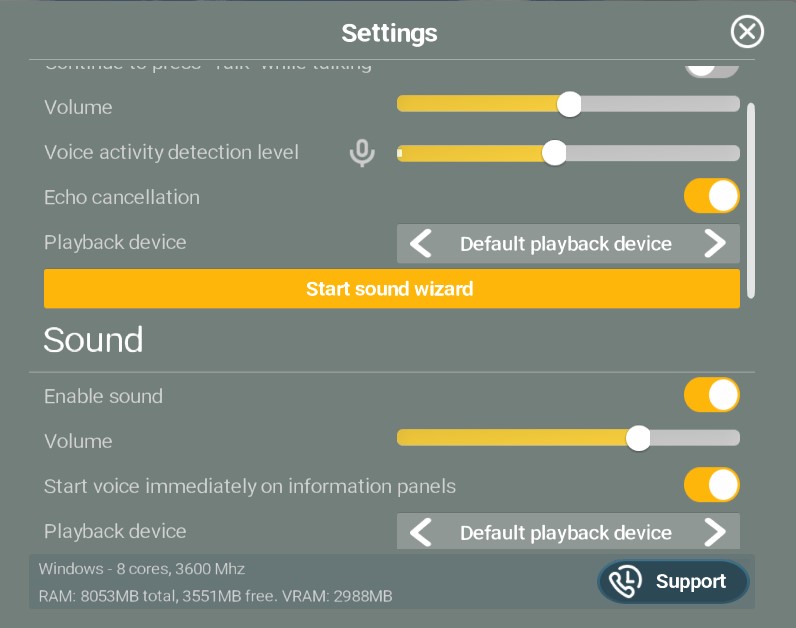
When you press the "Talk" button, you will be asked to use the Sound Wizard, just press the "No" option. After several attempts, the "Don't ask again" option will appear, mark it and press "Cancel", so it will always use the settings you have manually set.

If none of these solutions work for you, please try to find other headphones/device to use while in our application, so that you can configure the sound.